TradingView’s Session Volume Profile can disappear for two very different reasons:
1. the indicator is available but misconfigured, or
2. your account plan does not include access in the first place.That second reason matters more than most troubleshooting articles admit. If the indicator never appears in TradingView’s indicator search for your account, the problem is not your session settings, timezone, or chart layout. The problem starts with indicator access.
This updated guide focuses on the right order of diagnosis so you do not waste time changing settings for a tool your current account tier cannot even load.
If your broader goal is choosing the right order-flow tool rather than fixing a broken chart, read this too:
- /article/tradingview-volume-profile-vs-footprint-chart-order-flow-analysis-2026
- /article/tradingview-pine-script-request-footprint-volume-indicator-tutorial-2026
- /article/tradingview-desktop-app-vs-web-browser-which-version-2026
The first thing to check: can your account see the indicator at all?
Before touching settings, open the Indicators search panel on a chart and search for Session Volume Profile.
If the result does not appear, that is already a strong signal that you are dealing with plan gating or feature access, not a normal indicator bug.
Here is the exact panel where that check happens:
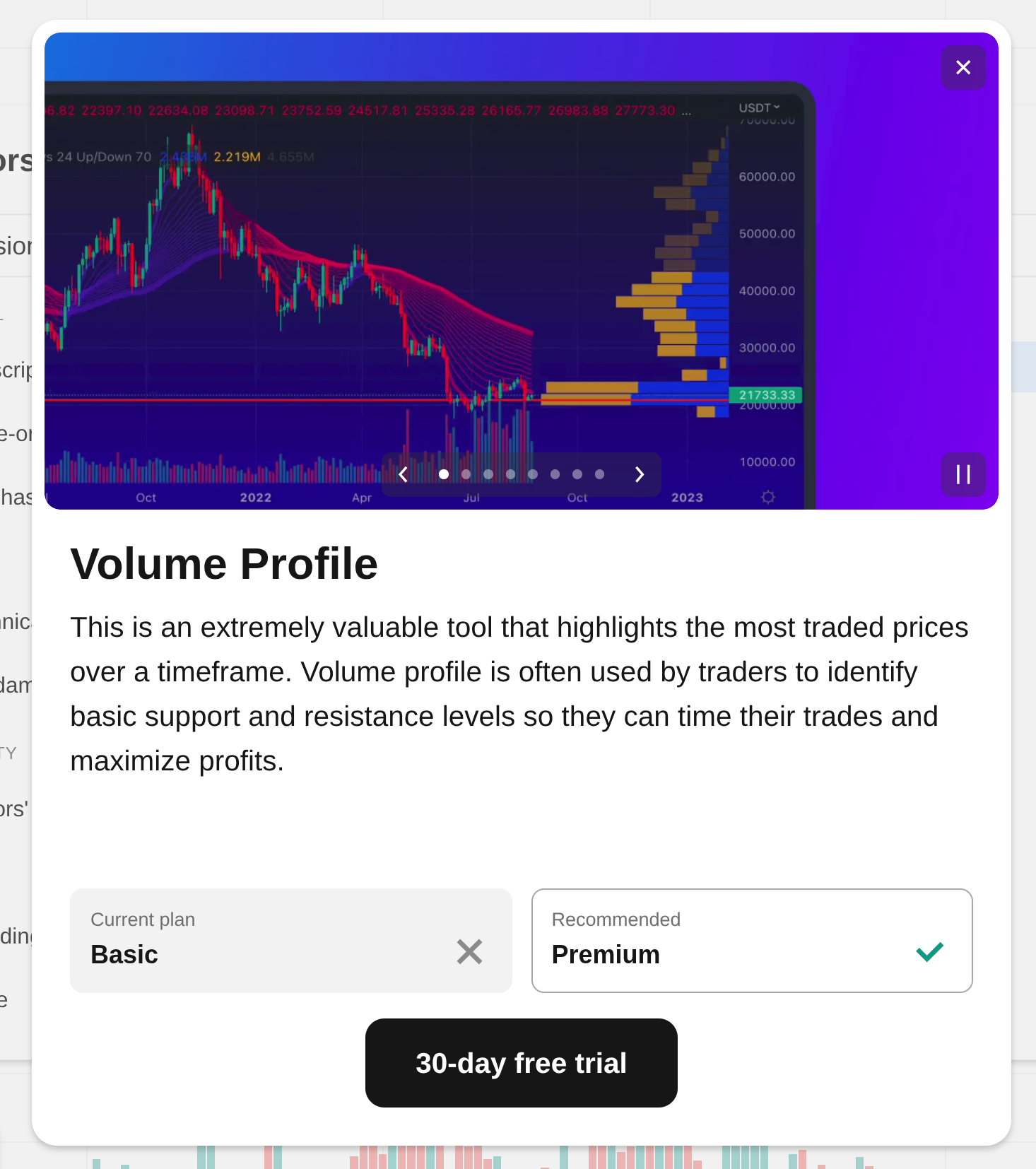
In the screenshot above, the user is already in the correct place: the chart-level Indicators search window. That means the search path itself is not the issue.
What this screenshot proves
This screenshot gives us a real interface-based conclusion:
- the user is in the correct TradingView indicator search panel
- the search term has been entered correctly
- the indicator is still not available in the current account context
> check plan / feature entitlement before changing chart settings
Many generic troubleshooting guides skip this and jump straight into session configuration. That wastes time when the feature is unavailable before the chart even loads it.
The second screenshot matters too
The account screenshot confirms the other half of the diagnosis:
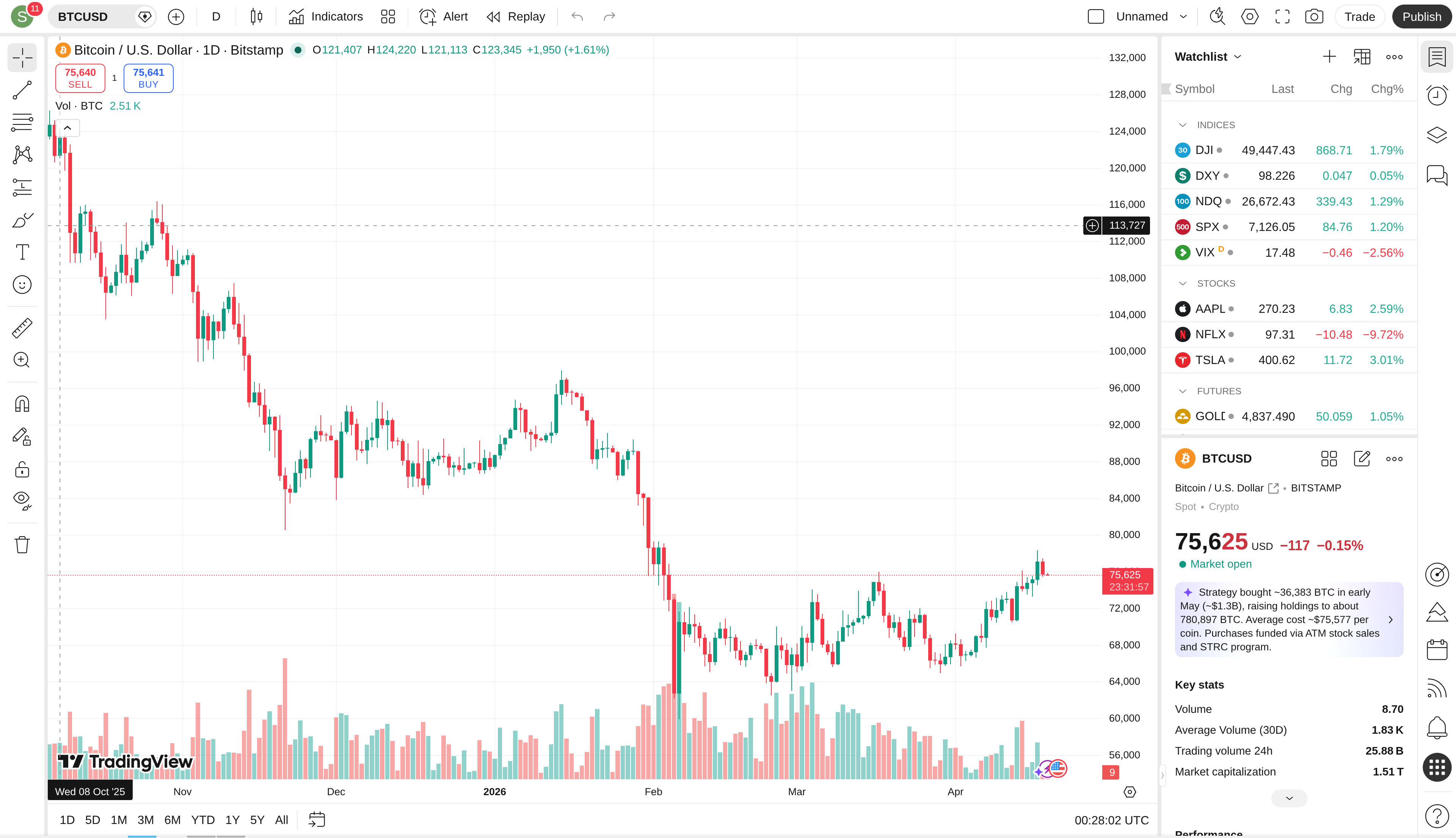
This matters because the missing indicator now has a concrete explanation path:
- user can access the chart
- user can access the indicators search
- user is not on a paid plan level that exposes the needed profile tool
So what is the correct troubleshooting order?
Use this order instead of randomly flipping settings.
1. Check account/plan access first
If the indicator is missing from search, stop here first.Questions to answer:
- Is this feature included in your current TradingView plan?
- Is it hidden behind a higher tier or limited package?
- Are you searching the standard indicator name and not a community clone?
2. If the indicator appears, then check session configuration
Only after the indicator is actually available should you move on to normal configuration issues:- wrong session type
- regular hours vs extended hours mismatch
- chart timeframe too high for lower-timeframe reconstruction
- symbol/session combination not exposing the expected market structure
- profile rows / placement settings making it look blank or misplaced
3. Check whether you are using the correct market context
Session-based tools behave differently across:- stocks with pre-market and post-market structure
- crypto with 24/7 trading
- futures with exchange-defined sessions
When the problem is plan gating, what should the article say?
The right guidance is practical:
- if you need Session Volume Profile specifically, verify whether your current plan includes it
- if your account does not expose it, do not treat that as a chart bug
- either upgrade to the required plan or switch to a tool that your current plan supports
- fixed-range volume profile workflows
- community indicators
- footprint-based tools when available
- non-profile methods for session analysis
If the indicator does appear but still looks broken
Then the likely causes become the usual configuration issues.
A. Extended-hours mismatch
If you expect pre-market or post-market session structure but extended hours are hidden, the profile can look incomplete or wrong.B. Wrong timeframe context
Session profiles rely on lower-timeframe data. On higher chart timeframes, older history can stop reconstructing correctly.C. Symbol/session mismatch
Some symbols do not map cleanly to the session assumptions traders expect from equities.D. Settings that make the profile look blank
Rows, session windows, offset, and display placement can make the profile appear “missing” when it is actually just rendered somewhere unhelpful.The practical fix tree
Use this decision tree:
1. Search the indicator in Indicators
2. If it is missing there → check plan / feature access 3. If it is visible and loaded → check session type, timeframe, and extended-hours settings 4. If it still looks wrong → test another symbol and another timeframe before blaming the indicator itselfThat is the shortest path to a real answer.
My take
For this specific case, the evidence points first to feature access, not chart configuration.
That is exactly why screenshots matter. Without them, a troubleshooting article can become a pile of generic advice. With them, we can separate:
- “the indicator is loaded but misconfigured”
- “the indicator is not available in this account context.”
If you want full TradingView access, start here: https://www.tradingview.com/?aff_id=163652
FAQ
Where is the Session Volume Profile search panel in TradingView?
Open any chart, then click Indicators in the top toolbar. The popup search window is the correct place to check whether the indicator is available to your account.
If Session Volume Profile does not appear in search, is it still a settings problem?
Usually no. If the indicator itself does not appear in the search panel, the first suspect should be plan or feature access, not chart settings.
What should I check before changing session settings?
Check whether your plan actually includes the indicator. That is the fastest way to avoid wasting time on irrelevant chart tweaks.