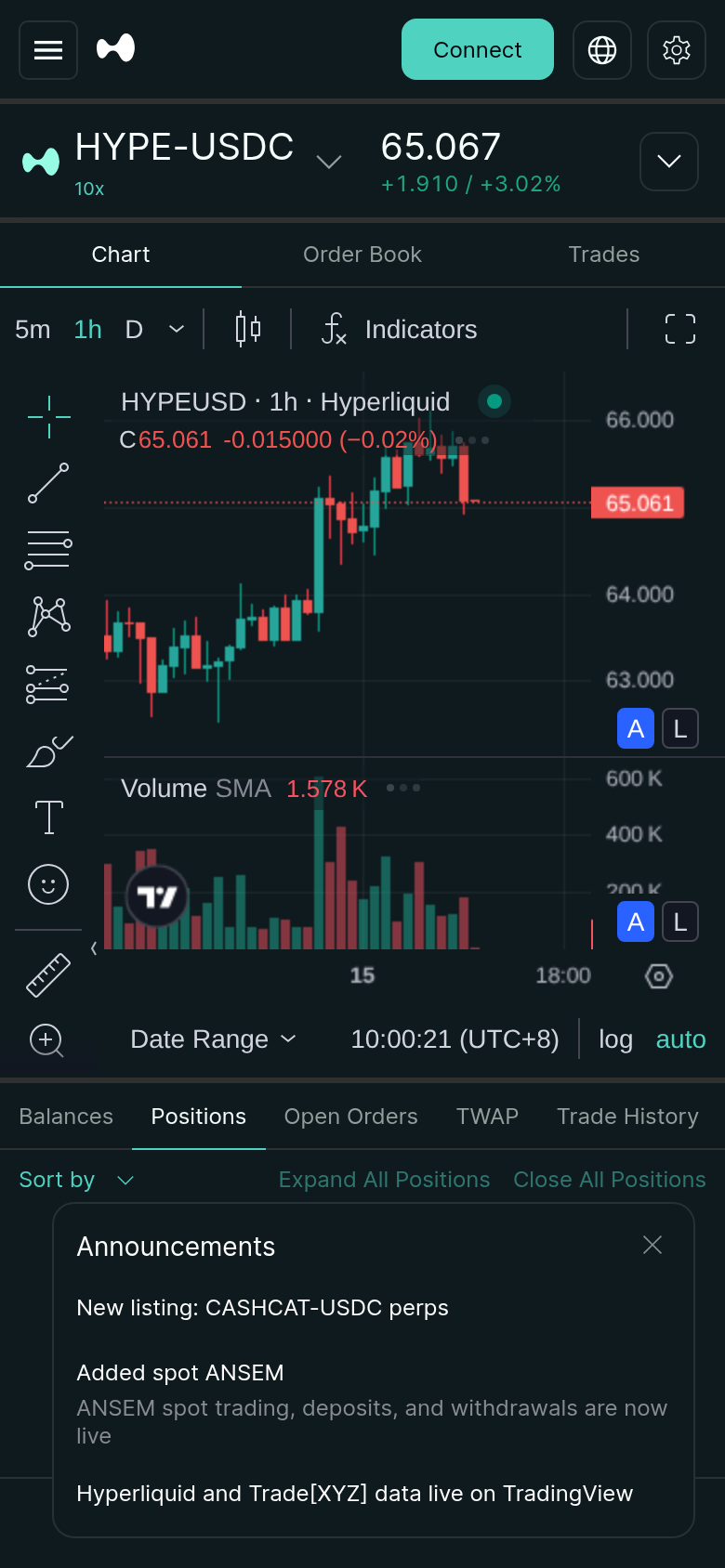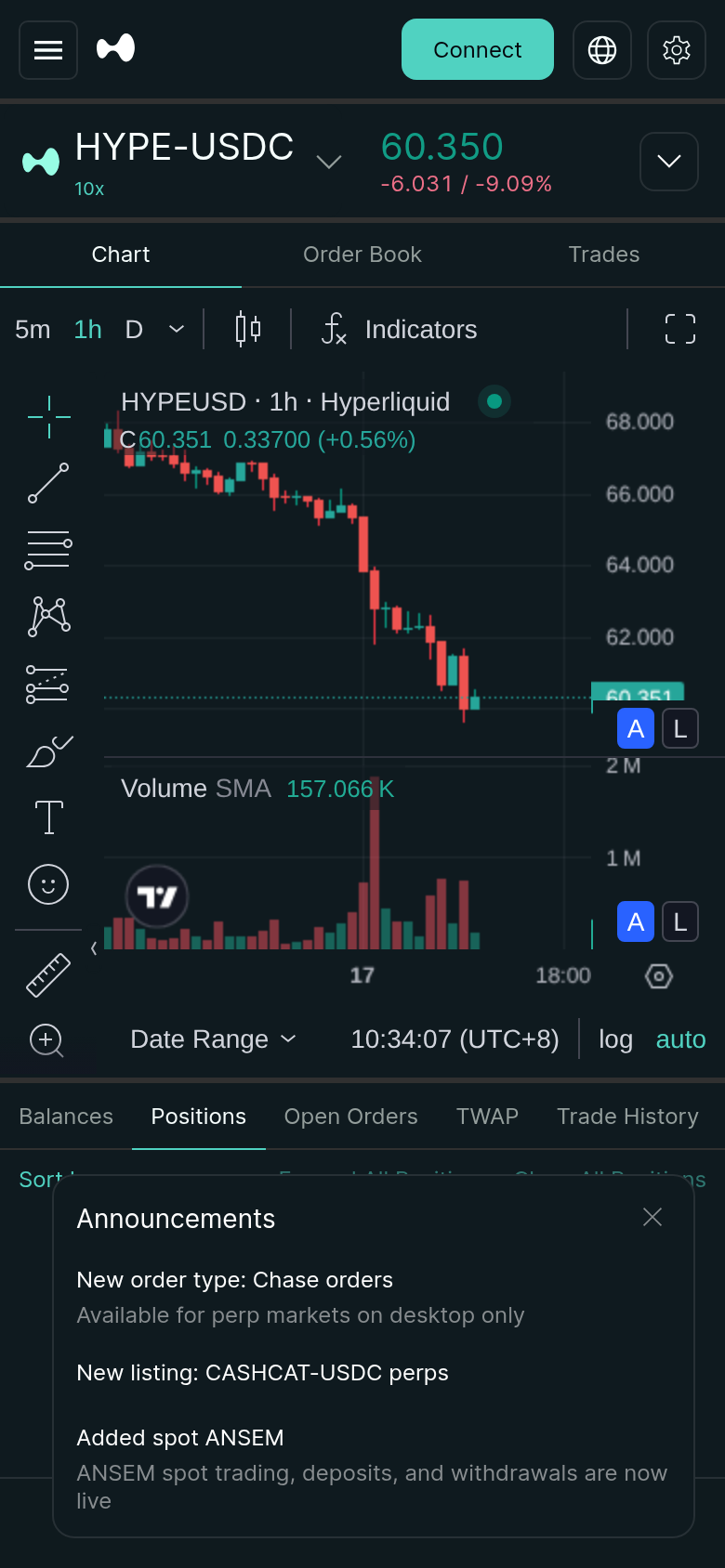
Hyperliquid’s Android app makes mobile trading much easier than juggling a browser tab on your phone. But early users are running into exactly the problems you would expect from a new mobile trading app: wallet connection loops, failed signatures, login sessions that seem to disappear, and confusion about whether they should use email login, a DeFi wallet, or the desktop-linked QR flow.
Based on Hyperliquid’s official documentation, support guidance, and the current Google Play app listing, the good news is that most connection failures are not account-ending problems. They usually come from one of five places:
1. the wrong login method for your setup
2. wallet compatibility issues 3. stale app or wallet sessions 4. chain/network mismatch during deposit or signing 5. trying to do a desktop-wallet workflow entirely inside mobileThis guide explains what to check first, what Hyperliquid officially recommends, and how to get back into the app without making the problem worse.
If you do not already have an account, use the official onboarding link here: Start with Hyperliquid.
What the Hyperliquid Android app currently supports
According to the current Google Play listing, the Android app supports:
- perpetuals trading across crypto, equities, commodities, FX, and more
- spot trading plus deposits and withdrawals for selected assets
- advanced order types including TWAP and TP/SL
- portfolio margin using HYPE, BTC, and USDC as collateral
- real-time tracking of balances, positions, and funding
- onboarding with either an email address or a DeFi wallet
- order fill push notifications in beta
First question: are you using the right connection method?
Hyperliquid currently supports three practical access paths:
1. Email login
This is the simplest route if you mainly want to trade from the app and do not care about managing an external wallet inside the same session.
Hyperliquid’s onboarding docs say that email login creates a blockchain address tied to your email session. You receive a 6-digit code, log in, and then fund the new address.
Use email login if:- you want the lowest-friction mobile setup
- your wallet app keeps failing to sign
- you are new to Hyperliquid and just want to trade quickly
- you specifically need an existing DeFi wallet address
- you want the same wallet-based identity across devices
- you are troubleshooting a desktop wallet session and do not want a second account path mixed in
2. Direct wallet connection
Hyperliquid’s docs say you can connect with an EVM wallet and then tap Enable Trading, which triggers a gasless signature request.
Use direct wallet connection if:- you already use Rabby, MetaMask, Coinbase Wallet, WalletConnect, or another supported EVM wallet
- you want your Hyperliquid account tied directly to that wallet
- you are comfortable approving signatures and handling chain settings
3. Link desktop wallet via QR code
Hyperliquid also documents a mobile QR workflow:
- connect your wallet extension on desktop first
- sign on desktop
- open mobile and choose Link Desktop Wallet
- scan the QR code
The fastest fix checklist
If the app will not connect, use this order. It solves the most common issues with the least risk.
Step 1: confirm you are on the official app and official support pages
Phishing is a real problem in crypto, and Hyperliquid’s own support pages warn users to beware of fake support links and DMs.
Before doing anything else, verify:
- the app is the official Hyperliquid app from Google Play
- the website is
app.hyperliquid.xyz - the docs are on Hyperliquid’s GitBook
- support will not DM you first or ask for your seed phrase
Step 2: update both the Hyperliquid app and your wallet app/extension
Hyperliquid’s connectivity FAQ explicitly says to update the wallet extension to the latest version. On Android, the same logic applies to the mobile wallet app.
Update:
- Hyperliquid Android app
- your wallet app
- Android system WebView and Chrome, if your wallet relies on them
Step 3: log out, force close, and reopen
Many failed-signing loops are just stale sessions.
Do this in order:
1. close the Hyperliquid app completely 2. close the wallet app completely 3. reopen the wallet first 4. reopen Hyperliquid 5. try the connection againIf that fails, restart the phone once before you start changing wallet settings.
Step 4: disconnect and reconnect the wallet
Hyperliquid’s official support checklist explicitly recommends disconnecting and reconnecting the wallet.
If the app keeps showing an old authorization state, removing the connection and creating a fresh session is cleaner than tapping retry ten times.
Step 5: check chain context before deposits or wallet actions
Hyperliquid’s support docs specifically mention switching networks and then switching back if you are trying to deposit USDC on Arbitrum or use HyperEVM functionality.
In practice, the most common confusion is this:
- user connects wallet successfully
- deposit or signing action fails
- user assumes login is broken
- actual cause is a wrong network state in the wallet
Wallet-specific issues Hyperliquid already documents
This is the part many troubleshooting guides miss: Hyperliquid already names some wallet-specific pain points in its support docs.
Coinbase Wallet on mobile
Hyperliquid says mobile users may face connection problems with Coinbase Wallet and suggests using the Coinbase Chrome extension instead.
That means if your entire setup depends on Coinbase Wallet mobile, your fastest path may not be “keep trying on Android.” It may be:
- connect on desktop instead
- use QR linking for mobile
- or switch wallet
MetaMask issues on HyperEVM
Hyperliquid notes that some users face issues with MetaMask on HyperEVM and suggests migrating to Rabby if the problem persists.
Like what you're reading? Try it yourself — this link supports ChartedTrader at no cost to you.
Start with Hyperliquid →That is a strong clue. If your problem appears only when you interact with HyperEVM-related features, do not waste an hour trying to brute-force MetaMask if the platform itself is already telling you compatibility can be rough.
Rabby is the safest fallback
Hyperliquid’s support page specifically says Rabby often works more smoothly and that your trades, history, and address remain the same if you switch wallet extensions.
For most users, that makes Rabby the practical fallback choice when:
- MetaMask signs inconsistently
- Coinbase Wallet mobile refuses to connect
- the app loops during trading enablement
What to do when the app keeps asking you to sign
A repeating signature prompt usually means one of three things:
Case 1: the wallet signed, but the session did not refresh
Fix:
- close both apps
- reopen wallet first
- then reopen Hyperliquid
- reconnect once
Case 2: the wallet never completed the signature
Fix:
- open the wallet app directly
- look for a pending approval request
- reject stale requests
- reconnect from scratch
Case 3: your current wallet/app combination is the problem
Fix:
- switch from mobile-only wallet flow to desktop + QR link
- or switch from MetaMask/Coinbase mobile to Rabby where possible
The best recovery path by user type
If you are brand new to Hyperliquid
Use email login first.
Why: it removes most wallet compatibility variables. You can still fund the account from a centralized exchange or another wallet later. If the goal is simply to get trading on mobile, this is the shortest route.
If you already trade on Hyperliquid from desktop
Use the Link Desktop Wallet QR flow.
Why: Hyperliquid already documents this as the intended way to bring an existing desktop wallet session onto mobile. It is cleaner than rebuilding your wallet state inside Android from zero.
If you insist on wallet-native mobile trading
Prefer Rabby over unsupported or flaky combinations.
Why: Hyperliquid’s own support guidance points users in that direction when compatibility gets rough.
Common user mistakes that look like app bugs
Mistake 1: trying to deposit without understanding the funding path
Hyperliquid supports multiple assets and networks, but the docs are clear that USDC on Arbitrum is the native bridge route most users should understand first.
If you fund the wrong asset on the wrong chain and then cannot trade immediately, that is an onboarding mismatch, not necessarily an Android bug.
Mistake 2: using a mobile wallet flow when the documented path is desktop-linked QR
If you already have a desktop wallet connected, use the QR link flow. Do not reinvent the session on mobile unless you need to.
Mistake 3: blaming the app for a wallet compatibility issue
Hyperliquid explicitly documents wallet-specific issues. If your exact wallet combination is already called out, accept the hint and change the wallet setup.
Mistake 4: chasing fake support instead of official support
The Play Store listing and docs both point users to official documentation and support. In crypto, fake troubleshooting help is often more dangerous than the original connection error.
When you should stop troubleshooting and change setup
Do not keep hammering the same broken flow for an hour. Switch approach when:
- Coinbase Wallet mobile keeps failing → move to desktop extension or another wallet
- MetaMask on HyperEVM keeps failing → test Rabby
- direct wallet login keeps looping → use email login temporarily
- mobile-only workflow keeps failing but desktop works → use QR link
Security rules while fixing connection issues
Never do any of the following:
- never share your seed phrase with “support”
- never paste a private key into a random recovery tool
- never approve a signature you do not understand on a fake domain
- never install a wallet APK from outside the official store because someone in Telegram told you to
If you want the lowest-friction mobile setup
Here is the cleanest sequence based on the current docs and app listing:
1. install the official Hyperliquid Android app
2. decide whether you want email login or wallet login before you start 3. if wallet login is flaky, switch to Rabby or use desktop QR linking 4. fund with the documented supported route instead of improvising chains 5. test a small action first before moving sizeIf you are still in setup mode, this onboarding guide is the better next read: /article/hyperliquid-perps-review
If you are already trading and want to reduce execution mistakes after you get connected, read this next: /article/hyperliquid-trailing-stop-how-to-set-up-2026
Bottom line
Most Hyperliquid Android wallet connection problems are fixable without drama. The highest-probability fixes are:
- use the right login path for your setup
- refresh stale sessions
- reconnect the wallet cleanly
- correct the network context
- switch away from wallet combinations Hyperliquid already flags as problematic
That gets you into the right app flow first, which is usually more important than chasing a perfect wallet setup on the first try.