About this guide: I'm Lawrence, the writer behind supa.is. Between February and May 2026 I've published 150+ articles on supa.is across crypto and brokerage tooling — including 30+ Hyperliquid-specific guides (recent examples: Hyperliquid Android App Wallet Connection Fix, Hyperliquid Getting Started: Wallet to First Perp, Hyperliquid Limit Order Maker Taker Fees). The most-repeated reader question across that Hyperliquid archive is exactly how to connect mobile via QR code, which is why I'm publishing this standardized guide instead of answering one-off.
*Evidence: Official documentation, captured and refreshed automatically each week. Official source.*
*Evidence: Logged-out mainnet public UI, captured and refreshed automatically each week. Official source.*
Trading on Hyperliquid from a desktop is a well-oiled machine for most active traders. The web interface is fast, the order book is deep, and the latency is competitive. But markets don't sleep, and neither do many of us. The ability to manage positions, adjust stop-losses, and monitor funding rates from a mobile device is no longer a luxury—it's a necessity for anyone running a serious portfolio.
Historically, connecting to Hyperliquid on mobile required navigating through wallet connections, signing messages, and dealing with the occasional mobile browser hiccup. That friction has been significantly reduced with the introduction of Hyperliquid's mobile QR code connection feature. This mechanism allows you to seamlessly link your desktop-verified wallet to your mobile device without re-authenticating from scratch.
Here’s how to set it up, why it’s faster than standard wallet logins, and the security rules you need to follow so your mobile setup doesn’t get compromised.
What Is Hyperliquid's Mobile QR Code Connection?
The QR code connection feature on Hyperliquid is a streamlined authentication method designed to bridge the gap between your desktop and mobile trading environments. Instead of requiring you to manually sign a new connection request on your mobile wallet (which can be clunky and prone to timeout errors), the QR code allows you to scan a generated code from your desktop session to instantly authorize your mobile device.
Think of it as a "second factor" that is already pre-verified. When you log into Hyperliquid on your desktop, your wallet is already authenticated. The QR code acts as a secure token that transfers that authentication state to your mobile browser or app, allowing you to trade without the friction of re-signing every time.
This is particularly useful for traders who:
* Switch between desktop and mobile multiple times a day. * Want to quickly adjust positions or stop-losses on the go. * Experience mobile wallet connection timeouts during high-volatility events.Why Use QR Code Connection Over Standard Wallet Login?
If you've tried connecting Hyperliquid via standard wallet login on mobile, you know the pain points. Mobile browsers often struggle with the cryptographic signing process, leading to failed connections or dropped sessions. The QR code connection bypasses this by leveraging the already-verified state of your desktop session.
Like what you're reading? Try it yourself — this link supports ChartedTrader at no cost to you.
Sign up on Hyperliquid →| Feature | Standard Wallet Login | QR Code Connection |
|---|---|---|
| Speed | Slow (requires signing) | Instant (scan and connect) |
| Reliability | Prone to mobile timeouts | Highly stable |
| Friction | High (multiple taps) | Low (single scan) |
| Best For | First-time setup | Daily on-the-go trading |
Step-by-Step: How to Connect Mobile via QR Code
Here is how you can set it up and use it.
Step 1: Ensure Your Desktop Session is Active
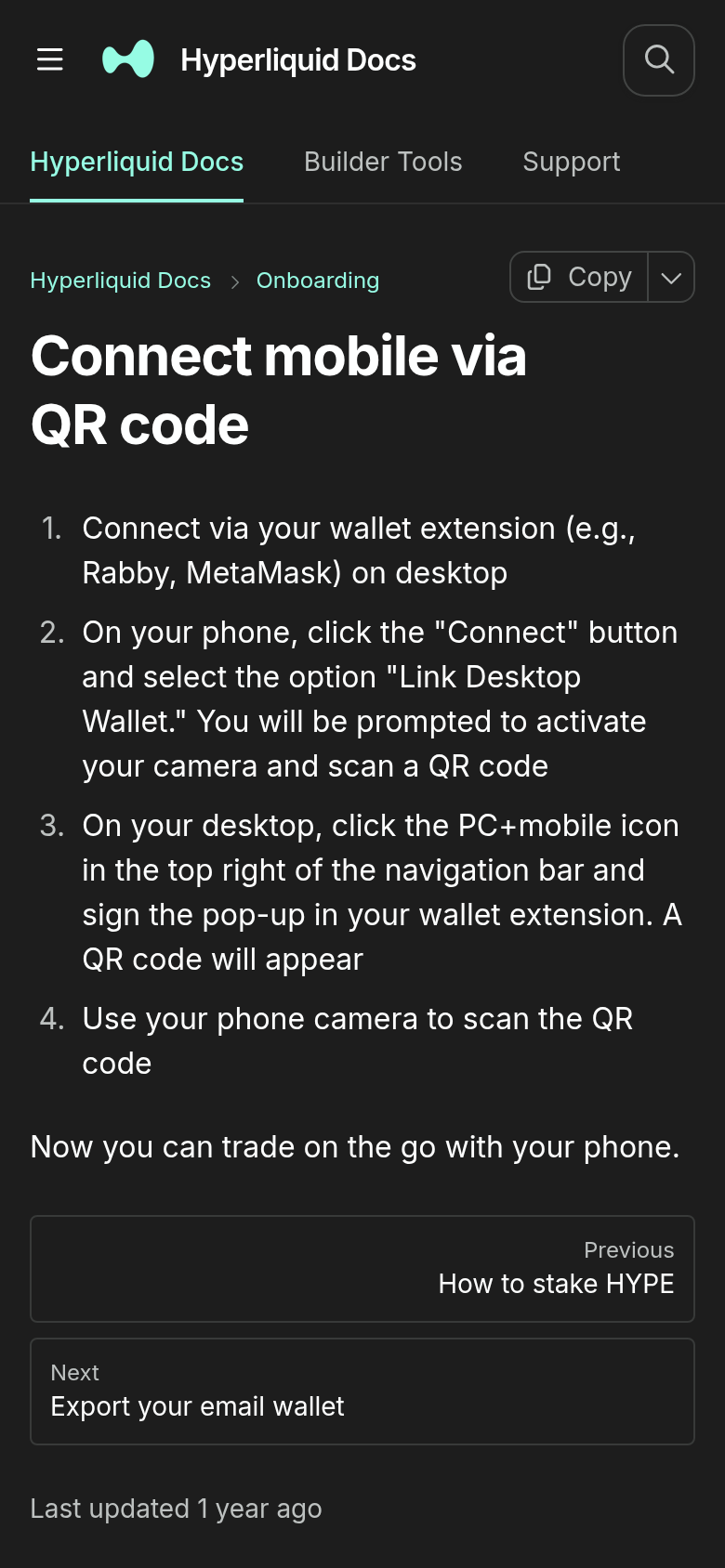
Before you can generate a QR code, you must be logged into your Hyperliquid account on a desktop browser. Connect via your wallet extension (e.g., Rabby, MetaMask) on desktop and ensure that you have successfully signed any required authentication messages. If your desktop session has timed out, you will need to re-authenticate on desktop first.
Step 2: Navigate to the Mobile Connection Panel
Once logged in on desktop, look for the mobile or QR code icon in the top-right corner of the interface. This is typically located near your wallet address or profile icon. Clicking this will open a dedicated panel that displays a dynamically generated QR code.
Step 3: Open Hyperliquid on Your Mobile Device
On your mobile device, open your preferred browser (Chrome, Safari, etc.) and navigate to the Hyperliquid web interface. You do not need to connect your wallet yet. The mobile interface will detect that you are attempting to connect via QR code and will prompt you to scan the code.
Step 4: Scan the QR Code
Use your mobile device's camera or the built-in scanner within the Hyperliquid mobile interface to scan the QR code displayed on your desktop screen. The QR code contains a secure, time-bound token that links your mobile session to your desktop wallet.
Step 5: Confirm the Connection
Once the QR code is scanned, your mobile browser will automatically authenticate and connect to your Hyperliquid account. You should see your wallet address and account balance appear on the mobile interface, ready for trading.
Security Considerations for QR Code Connections
The QR code is a time-bound token, meaning it expires after a short period (usually a few minutes). This prevents unauthorized users from scanning a stale QR code from a screenshot or a public screen.
However, you should still follow these best practices:
* Never share your QR code publicly. Do not post screenshots of your QR code on social media or Discord. Even though they expire quickly, a malicious actor could attempt to scan it before it expires. * Always verify the desktop session. Ensure that the desktop screen generating the QR code is yours and that no one else has access to it. * Log out after mobile trading. Once you are done trading on mobile, it is a good practice to disconnect your wallet from the mobile browser to prevent unauthorized access if your phone is lost or stolen.Troubleshooting Common QR Code Issues
If you encounter issues while trying to connect via QR code, here are some common solutions:
* QR Code Expired: If the QR code has expired, simply refresh the QR code panel on your desktop and scan the new code.
* Mobile Scanner Not Working: If your mobile browser's built-in scanner fails, you can use your phone's native camera app to scan the QR code. The browser should detect the scan and redirect you to the connection page. * Connection Fails After Scan: Ensure that your desktop session is still active. If your desktop session has timed out, the QR code will be invalid. Re-authenticate on desktop and try again.How QR Code Connection Fits Into Your Trading Workflow
Here is how you can structure your workflow:
- Morning Setup: Log into Hyperliquid on your desktop, review your positions, and set your stop-losses and take-profit levels.
- On-the-Go Monitoring: When you step away from your desk, use the QR code to quickly connect on your mobile device. Monitor the market and adjust your orders as needed.
- Evening Wind-Down: Disconnect your mobile wallet and return to your desktop for deeper analysis and strategy planning.
FAQ
How long does a Hyperliquid QR code stay active?
A Hyperliquid QR code is time-bound and typically expires within a few minutes. This is a security measure to prevent unauthorized access if the code is intercepted.Can I use the QR code connection on multiple mobile devices?
Yes, you can connect multiple mobile devices using the same QR code, provided the desktop session remains active. However, for security reasons, it is best to limit the number of connected devices.What happens if I lose my mobile device while connected?
If you lose your mobile device, immediately log into your Hyperliquid account on desktop and disconnect the mobile session. You can also change your wallet seed phrase if you suspect your account is compromised.Does the QR code connection work with Hyperliquid's mobile app?
The QR code connection is primarily designed for the mobile web interface. If you are using the Hyperliquid mobile app, you may need to use the standard wallet connection process, though the app may integrate QR code functionality in future updates.Is the QR code connection more secure than standard wallet login?
The QR code connection is equally secure as standard wallet login, provided you follow best practices. The time-bound nature of the QR code adds an extra layer of security by preventing stale authentication attempts.Risk Warning
Risk Warning: Crypto trading involves substantial risk of loss. Never invest more than you can afford to lose. This is not financial advice.
Conclusion
By eliminating the friction of re-authenticating on mobile, the QR code feature lets you focus on making informed trading decisions. Whether you are adjusting stop-losses during a volatile market or simply checking your positions while away from your desk, the QR code connection ensures that you are always just a scan away from your Hyperliquid account.